
Causes Power, Corrupt file system, Blue Screens, Corrupt reg
There isn’t a single cause for a Windows 10 automatic repair loop, but there are several situations that are likely to cause it. Missing or corrupted system files are one of the more common causes, where Windows can’t boot (or repair itself) because these essential files it needs to run aren’t available.
Other causes are power outages , blue screens, Registry corruption
This prevents the Windows kernel (ntoskrnl.exe) and other essential Windows services from fully loading, preventing you from using your PC. Another issue that could cause a repair loop is a newly installed component or connected peripheral that’s missing a device driver (or just isn’t working correctly).
Other problems, such as faulty components, malware infection, corrupted system registry, and even broken installation files all point to a possible cause. Thankfully, many of the fixes you can try below will work for most causes of a Windows 10 automatic repair loop.
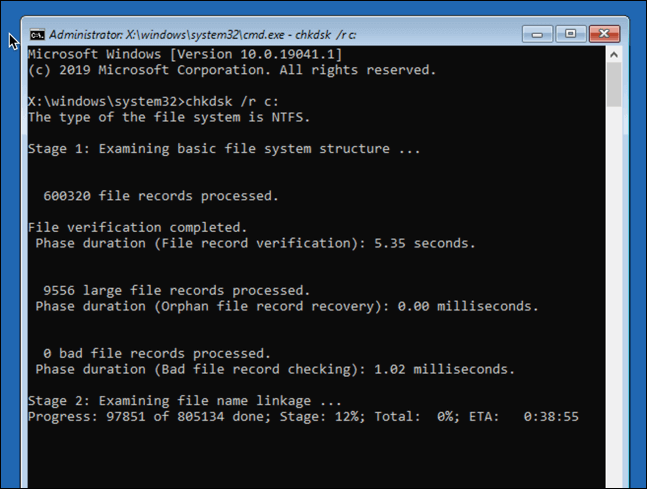
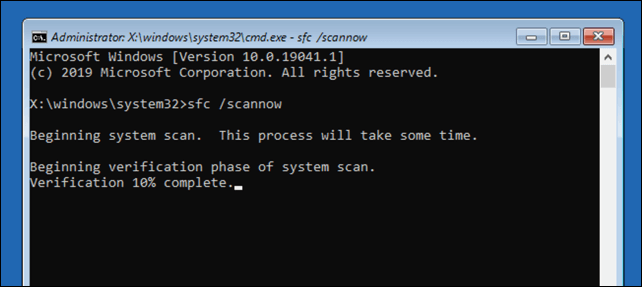
- Run System Repair Tools (Chkdsk, SFC)
It ‘s not easy to diagnose a startup repair loop so it is best to be methodical and use some common system repair tools. If Windows can’t boot, you can usually force Windows to boot to a command prompt window using the Advanced Options menu screen.
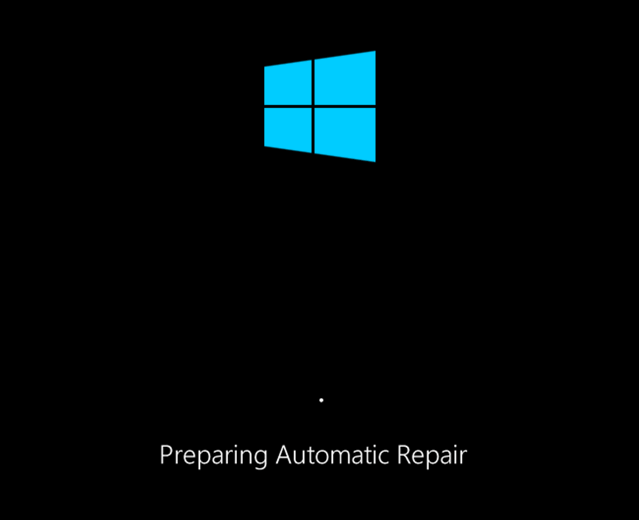
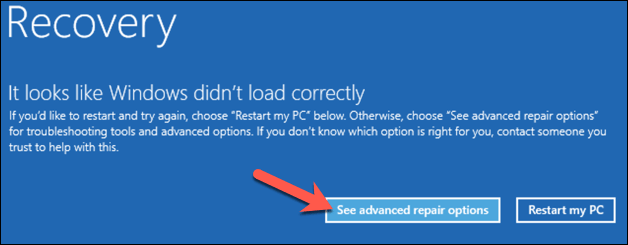
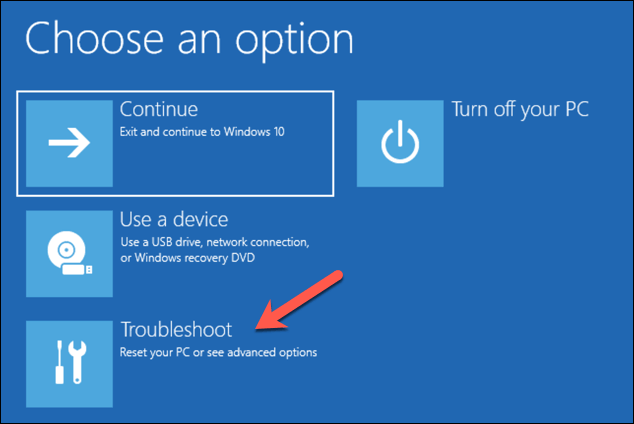
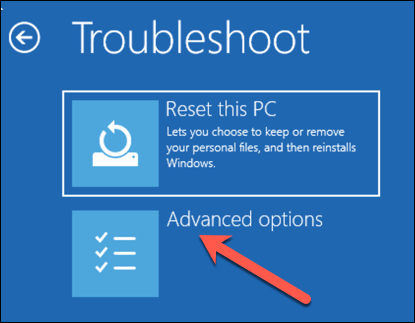
- To do this, restart your PC and press the F8 key on your keyboard before the Windows logo and spinning icon appears (you may need to repeat this step a few times). This should cause the Windows boot troubleshooting menu to appear. Select See advanced repair options to begin.
- Run the Windows 10 DISM tool
The System File Checker utility above will fix system files using a local Windows image. If certain files become corrupted, Windows will replace them with the local image, but if this image itself has become corrupted, Windows can’t repair itself.
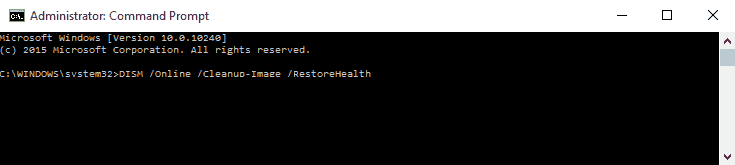
To overcome this, you can use the DISM (Deployment Image Servicing and Management) tool to repair your system files first.
- To do this, press the F8 key during boot up, then select See advanced repair options.
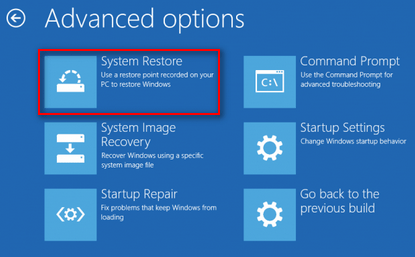
4 Perform a System Restore which restores critical system files to a Previous point in time.
If the problem occurs after an update you roll your pc back to the previous build.
Finally if all else fails you can take the machine back it’s factory default. While you lose any programs installed it’s factory state all data is retained.
For more info on our PC repair services and startup repairs follow attached links.
Macrium Reflect Rescue Media
The Macrium Reflect Windows boot overview includes the option to create a bootable rescue environment, in case Windows fails to boot. This is done by adding a “Macrium Reflect Rescue Media” selection to the Windows Boot Menu, which enables launching the rescue environment without external media. While this is a useful feature, it’s advisable to also have external rescue media (such as a USB or CD) as a precaution against drive failure.
This section highlights the main characteristics and practical applications.
With the Windows Boot Menu, you have direct access to the rescue media. This option is particularly helpful when Windows fails to boot properly.
System restore: Utilizing the rescue environment, you have the ability to recover from a Windows update, software installation, or hardware failure by restoring a previously generated system image.
Resolve Windows boot issues: The rescue media includes a helpful tool that can diagnose and fix configuration errors that hinder the startup of Windows.
The rescue media enables the restoration of an image onto a new machine, even if Windows has never been installed on it. This process is referred to as bare-metal recovery.
Establishing the Windows Boot Menu selection
Access the Rescue Media Builder through either the “Rescue” button or the “Create Rescue Media…” option within the Macrium Reflect application.
Choose “Add boot menu”: When using the Rescue Media Builder, make sure to select the option to add a boot menu.
Simply follow the prompts provided by the builder to add the desired option to your BCD (Boot Configuration Data) store.
To reboot your computer: Once the procedure is finished, a restart will be required. This will bring up the “Macrium Reflect System Recovery” or a comparable choice in your Windows boot menu, in addition to the usual Windows entry.